Navigating the package returns process with ease
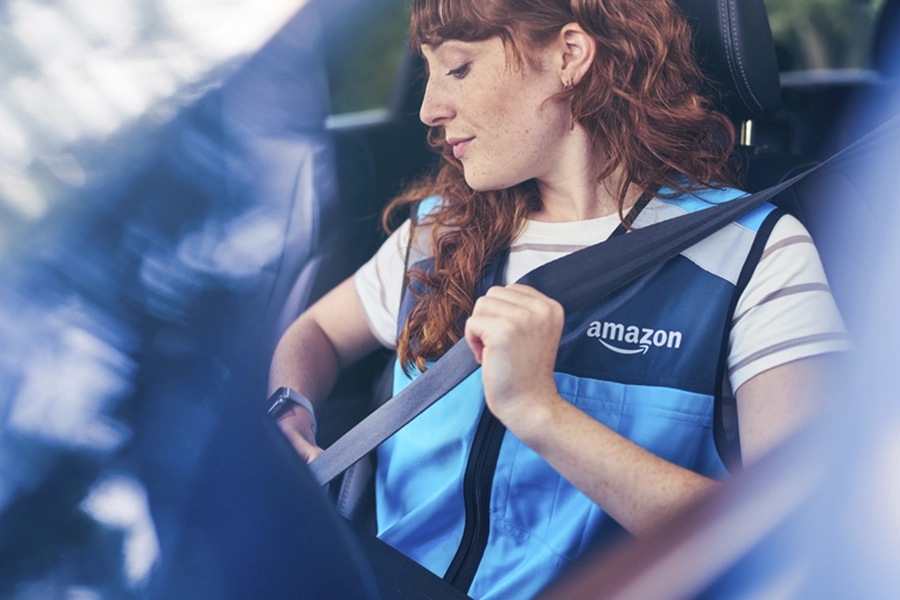
To help Amazon Flex delivery partners handle package returns efficiently and ensure undelivered packages get back to the station on time, the Amazon Flex app provides several useful features. These features guide you through the return process step-by-step, including confirming when you will return the undelivered package, as well as how to scan returned packages at the delivery station. Here are some of the key features that can help you complete your package returns quickly, so you can get back to your day.
Delivering to a customer location
When you arrive at the customer location and are unable to deliver a package, double-check the delivery address in the Amazon Flex app to confirm you are at the correct destination. Do your best to follow reasonable customer instructions listed in the customer notes and contact the customer if you need help accessing a delivery location. If you are unable to find a safe location for the packages and cannot make contact with a customer, navigate to the help menu in the app by clicking “?” and select “Unable to deliver”. Then, make sure to select the accurate reason for why you were unable to complete the delivery.
Scheduling a package return
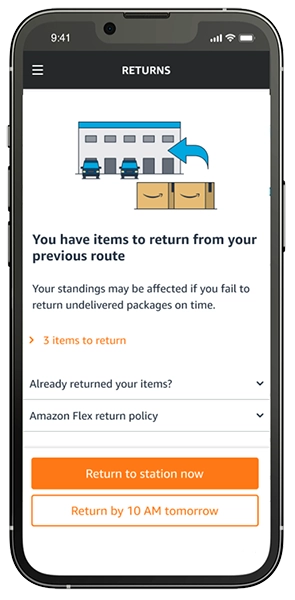
At the end of your route, the app will notify you of any packages that need to be returned and provide two convenient options: "Return to station now" or "Return by 10 AM tomorrow." If you choose to return immediately, the app will automatically provide you with navigation back to the delivery station. If you select to return the next day, a reminder will be automatically created in your itinerary to help you remember to complete the return the following morning. All returns must be scanned using the Amazon Flex app by 10 AM.
Scanning a returned package
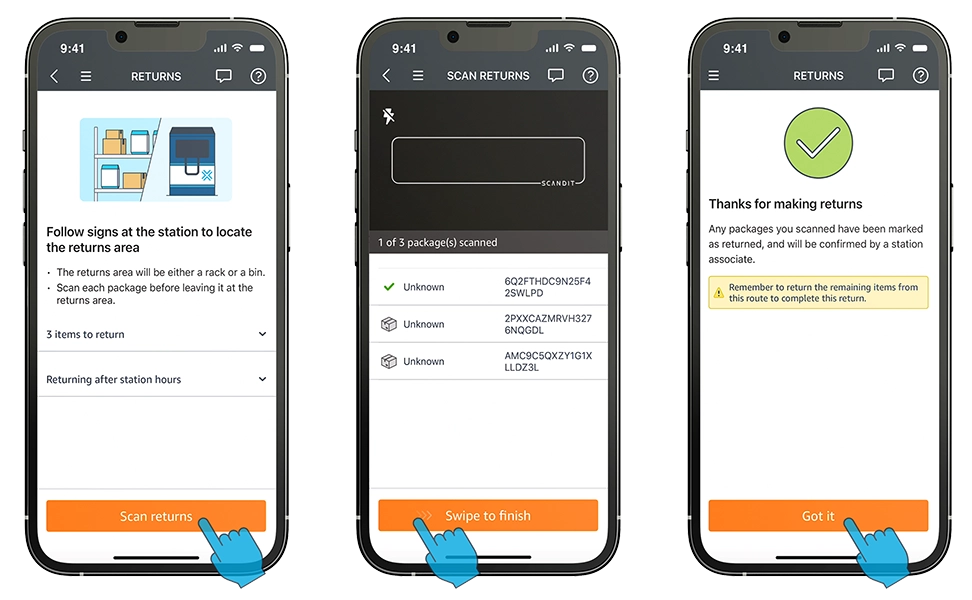
Once you arrive at the delivery station with a package to return, the Amazon Flex app guides you through the package scanning process. Using your phone's camera, you scan each package before placing it in a designated returns area. If you're unable to scan a package, you can tap the gear icon in the app and select "Manually Enter Package ID." These steps ensure all returns are properly tracked and allow us to deliver the package to the customer as soon as possible.
Real-time support options
If you need help during the returns process, you can contact Driver Support using the Amazon Flex app. We have a dedicated team who can provide guidance to you on completing your return successfully. For more information on the returns process and other delivery features, visit the "Making deliveries" section in the Learning Portal in the Amazon Flex app.
Related Blog Posts
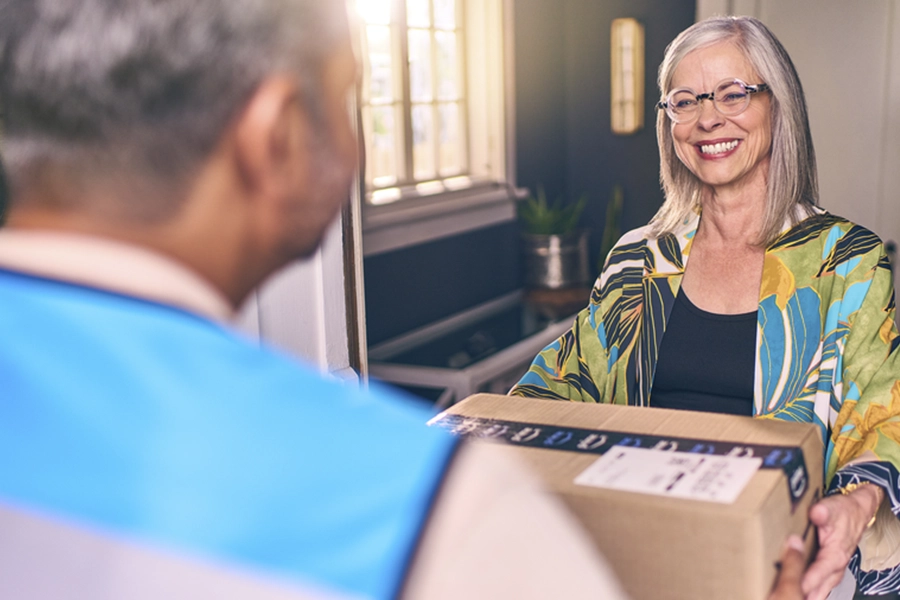
Thank My Driver is back!
Delivery partners can save at AMC Theatres
Thank you for 10 years of Amazon Flex
Download the Amazon Flex app
Create an account to set your schedule, see your earnings upfront, and start delivering with confidence.